
Create a shipping discount
A shipping discount gives free shipping, or a percentage or a fixed amount off shipping, at checkout. You choose the shipping methods it applies to, when it applies with rules, and for how long.
Keep in mind: as the note on the app's Discounts page says, Shopify lets you create up to 5 automatic discounts, covering order, product, volume and shipping discounts.
Create the discount
-
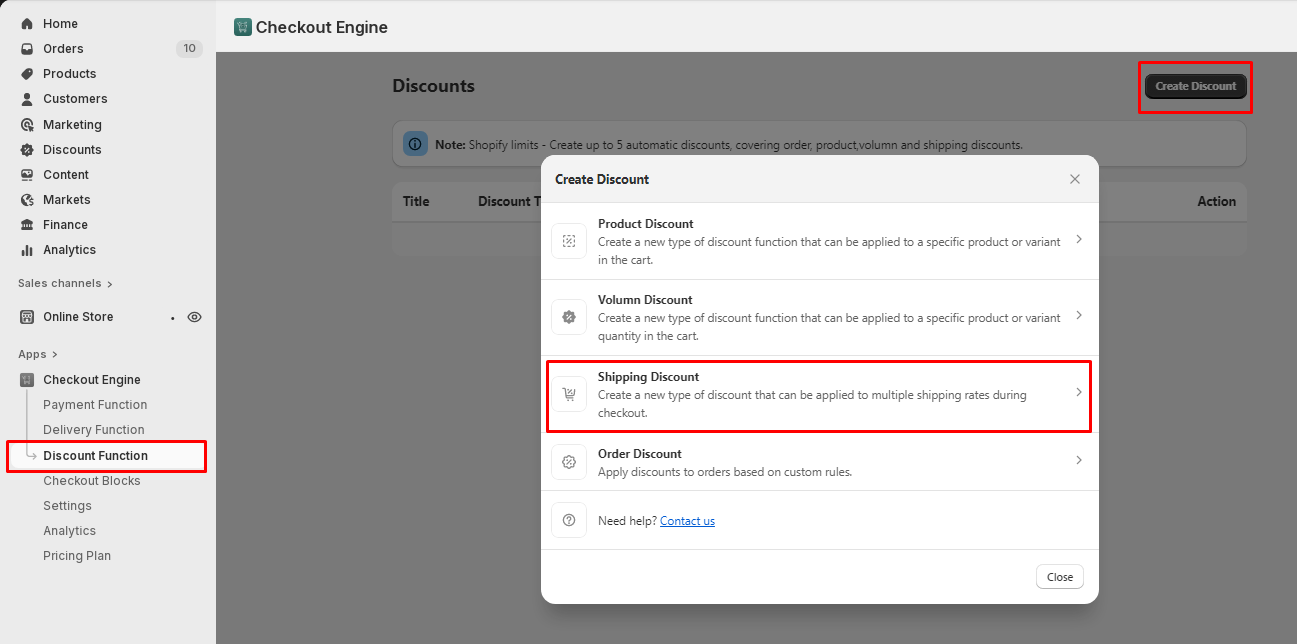
In the app, go to Discount Function and click Create Discount.
-
Click Shipping Discount.
-
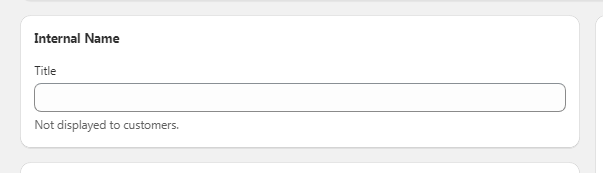
Under Internal Name, enter a Title. It's for internal use only: customers don't see it.
-
Under Discount Method, choose Automatic discount or Discount code, whichever fits your needs.

Set the discount
-
Under Discount Type, choose Free Shipping, Percentage, for example 50% off shipping, or Fixed amount, for example $5 off shipping.
-
If you chose Free Shipping, enter the message customers see at checkout under Free shipping message, for example
Free shipping on your order!. If you chose Percentage or Fixed amount, set the discount instead.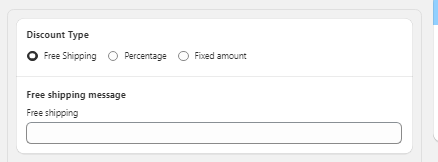
Choose the shipping methods
-
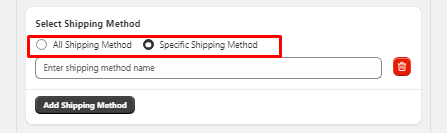
Under Select Shipping Method, choose All Shipping Method to apply the discount to all shipping methods, such as Standard and Express, or Specific Shipping Method to choose which methods it applies to.
-
If you chose Specific Shipping Method, enter the name of a method in Enter shipping method name. Click Add Shipping Method to add more.
Choose when the discount applies
-
Under Customization Rules, next to Apply when matching, choose all conditions (every rule must match) or any condition (at least one rule must match).
-
Choose a rule type in Select Rule type and a condition in Select Rule Condition, then enter the value. Use Add Conditions to add the conditions you need.
-
To create another rule set, click Add New Rule.
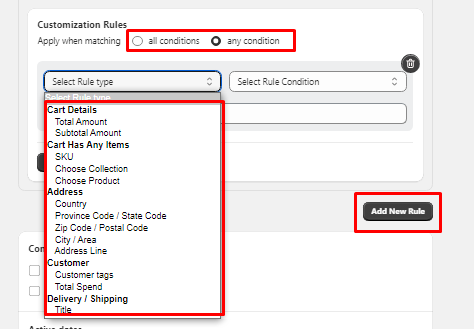
The rule types are grouped under Cart Details (Total Amount, Subtotal Amount), Cart Has Any Items (SKU, Choose Collection, Choose Product), Address (Country, Province Code / State Code, Zip Code / Postal Code, City / Area, Address Line), Customer (Customer tags, Total Spend) and Delivery / Shipping (Title). For example, a rule can check that:
- the cart subtotal is above $50
- the customer has the tag
VIP - the cart has a product from the Shoes collection
Set combinations and dates
-
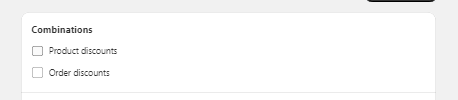
Under Combinations, tick the discounts this discount can be combined with: Product discounts or Order discounts.
-
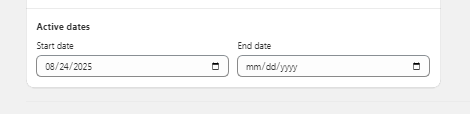
Under Active dates, enter the Start date and End date.
-
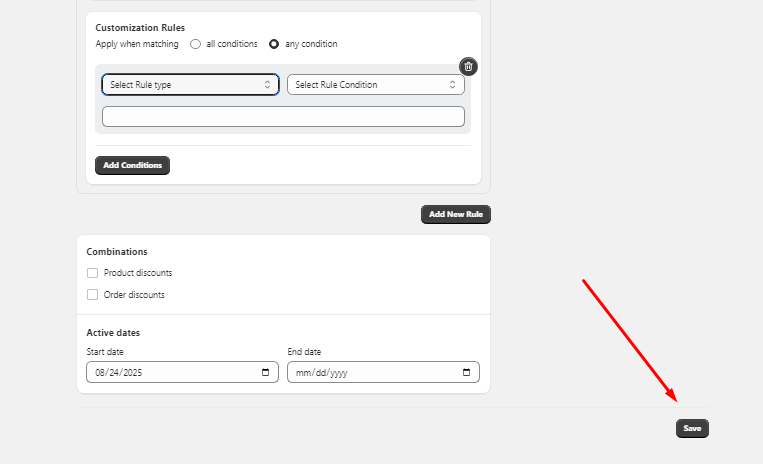
Click Save at the bottom right.
Check that it works: go to checkout with a cart that meets your rules. The discount is applied. If you chose Discount code, enter the code first.
If it doesn't work
- The cart doesn't meet the rules. With all conditions, every rule must match, not just one.
- The shipping method isn't included. With Specific Shipping Method, the discount applies only to the methods you entered.
- The discount isn't active. Check that today falls between the Start date and the End date.
- Another discount is already applied. If both should apply, tick that kind of discount under Combinations.
Need a hand? Email support@scriptengine.net and our team will help you set it up.