
Read your wishlist analytics
The Analytics page shows how shoppers use their wishlists and how much revenue the wishlist brings in. To open it, in the app go to Analytics.
The totals
The tiles at the top show the totals for the period shown at the top right, for example This month.

- Wishlist page views: how many users visit the wishlist page of your store.
- Customers with wishlist: the total number of customers who added a product to their wishlist.
- Total wishlists: the total number of products added to wishlists.
- Unique products wishlisted: how many different products all customers added together.
- Added to cart from wishlist: the total number of wishlist products added to the cart.
- Orders from wishlist: the total number of wishlist products that customers placed an order for.
- Average Order Value: the average amount customers spend per order: the total revenue divided by the total number of orders.
- Revenue from Wishlist: the overall revenue that Wishlist Engine brought in.
The charts
-
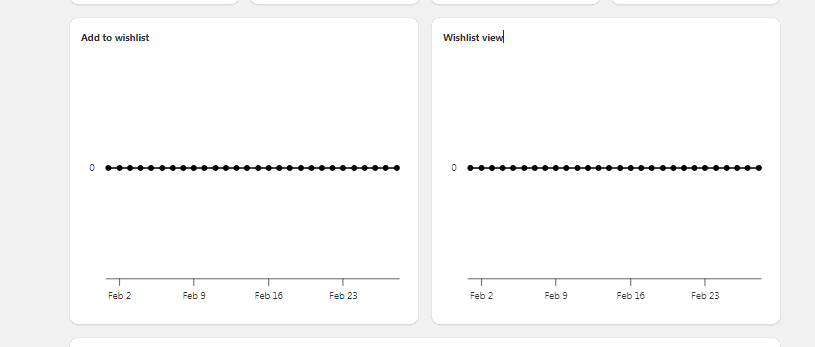
Add to wishlist: the total number of products customers added to their wishlists.
-
Wishlist view: the total number of customers who viewed the wishlist page.
-
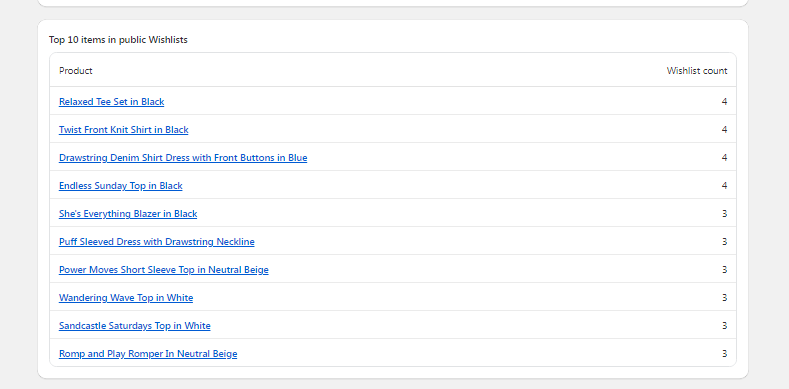
Top 10 items in public Wishlists: the 10 products that customers added to their wishlists most often, with the Wishlist count of each.
-
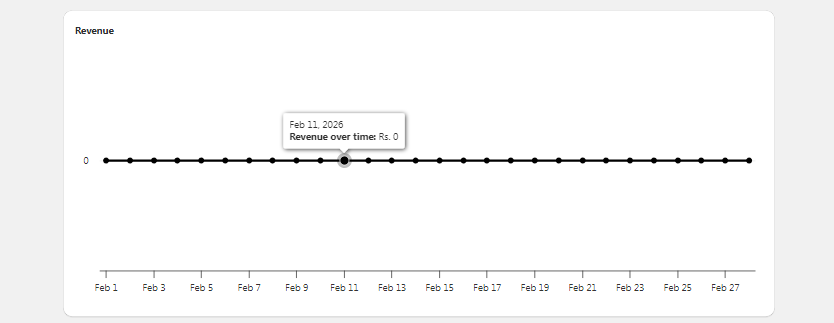
Revenue: the revenue from wishlist products over time. Point at a day to see its revenue.
To see the products and customers behind these numbers, see See which products are saved and See orders that came from wishlists.