
Change the language and text
You can change any text the app shows in your store, such as the wishlist button labels, the pop-up messages and the wishlist page, so it matches your store's language. If your store sells in more than one language, set the text for each one.
Before you start: the Language tab notes that translations are available with the app's Premium Plan.
Change the text
-
In the app, go to Settings › Language.
-
Enter your text in the fields you want to change. The groups of fields are listed below.
-
Click Save under the group you changed. Each group has its own Save button.
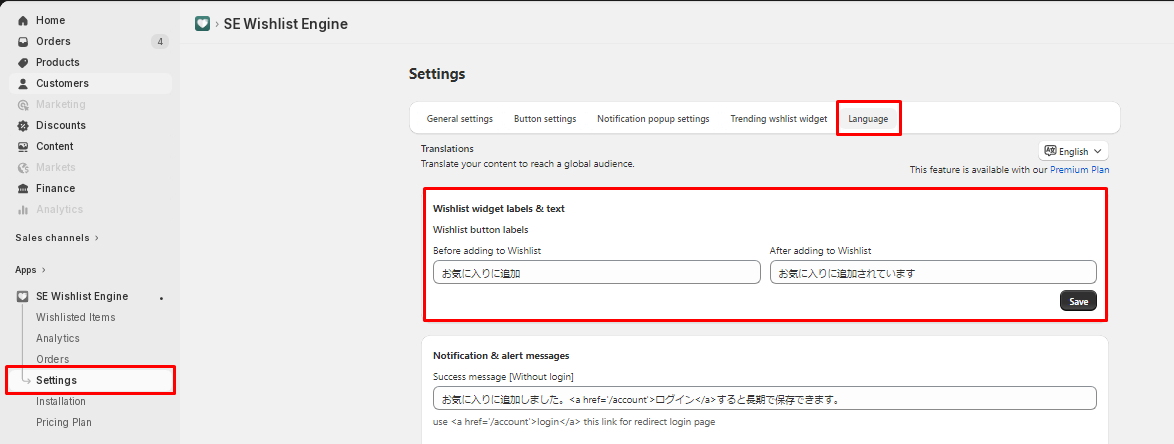
Wishlist widget labels and text
Under Wishlist button labels, set the text of the wishlist button in Before adding to Wishlist and After adding to Wishlist.
Notification and alert messages
These are the success and error messages shoppers see in the pop-ups:
- Success message [Without login]
- Success message [For login users]
- Success message [Guest login disabled]
- Success message [Item removed]
- Success message [Wishlist share url copy!]
- Success message [Added to cart from wishlist]
- Success message [Save for later from cart page or cart drawer]
- Error message [Product detail]
- Error message [Wishlist]
To put a link in a message, use these as the app shows under the fields:
- A link to the login page:
<a href='/account'>login</a> - A link to the wishlist page:
<a href='/apps/wishlist'>'My Wishlist'</a>

Wishlist page
This group holds the text of the wishlist page:
- Wishlist page title, Placeholder searchbox, Empty wishlist text, Button Login and Wishlist Share Text.
- Button move to cart and Button out of stock: the text of each button, with its Background color and Text color.
- Button view product: the app notes that this button only shows on the new customer UI wishlist page.
- Share options hover tooltip: Share on facebook, Share on twitter, Share on whatsapp, Share on email and Wishlist Copy Link.
- Bulk option text: Select all text, Move to cart and Delete text.


Set the text for each language
If your store sells in more than one language, set the text separately for each language.
-
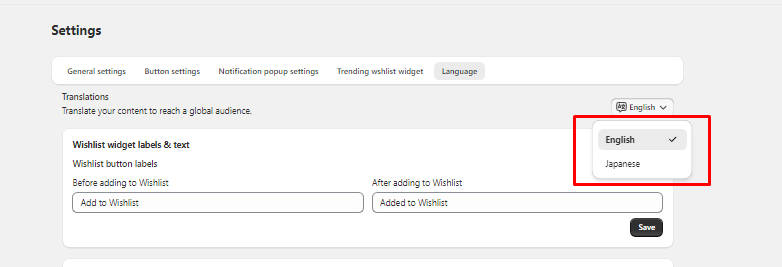
At the top right of the Language tab, open the language list, for example English.
-
Choose a language.
-
Enter the text for that language and click Save under each group you changed.
-
Repeat for each language your store uses.
Check that it works: open your store in each language and add a product to your wishlist. The button and the pop-up show your text.